
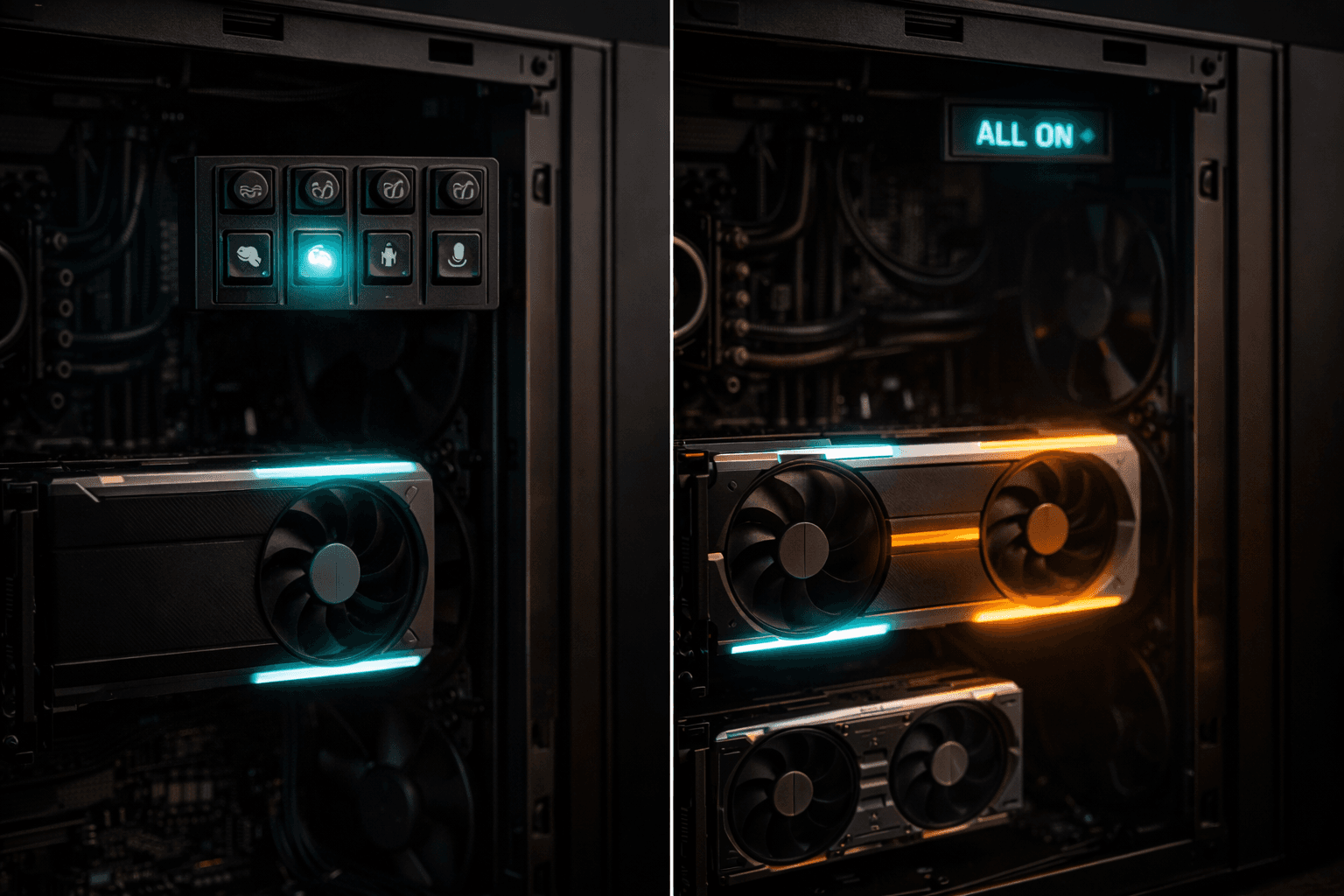
I Added a Second GPU and Everything Changed
One GPU meant choosing between text AI, image generation, and transcription. A second card ended the trade-offs — mostly.
Every time I wanted to generate an image, I had to kill my text AI first.
That was the reality of running a single GPU. One NVIDIA RTX 4070 Super with 12GB of video memory. Enough to run one AI workload well. Not enough to run two at the same time.
The workstation handles three different jobs. Ollama runs local language models for batch text processing — scoring businesses, classifying content, generating first drafts. ComfyUI runs image generation with Flux models for blog graphics and thumbnails. Faster-whisper transcribes video and audio files. All three need the GPU. All three want all of the GPU's memory. And 12GB is not enough to share.
So I wrote a script called gpu-switch.sh. It did exactly what the name says. Want to generate images? Run the script, pick "comfyui" mode, and it stops Ollama, frees the memory, and starts ComfyUI. Need to transcribe a video? Run it again, pick "transcribe" mode, and ComfyUI shuts down so Whisper can load. Back to text work? Switch again.
It worked. It was also annoying.
The Switching Tax
The script itself took about 30 seconds to swap modes. That's not the problem. The problem is the interruption.
You're in the middle of a batch job — scoring 200 businesses through a local language model — and a request comes in for blog images. You can't do both. You either finish the batch and make the images wait, or you kill the batch, switch modes, generate the images, switch back, and restart the batch from wherever it left off.
That's not a technology problem. That's a workflow problem. Every mode switch is a decision: what's more important right now? And those decisions add up. Not in minutes — in mental overhead. You stop thinking about what you're building and start thinking about what the GPU is doing.
The worst version of this was overnight automation. Cron jobs run at 6 AM to sweep career pages and score new opportunities. Those need Ollama. But if someone left the GPU in ComfyUI mode the night before, the morning batch fails silently. The script doesn't know to switch modes on its own. It just tries to talk to Ollama, gets no response, and logs an error that nobody sees until 9 AM.
Exclusive mode worked when the workstation was a side project. Once it became the backbone of an automated operation, the switching tax got real.
Why the RTX 4000 SFF Ada
The fix was obvious — add a second GPU. The question was which one.
The constraints were physical, not financial. The workstation has a standard desktop case. Most high-end GPUs are massive — triple-slot coolers that block adjacent PCIe slots, 300+ watt power draws that demand a new power supply. I didn't want to rebuild the machine. I wanted to add a card.
The RTX 4000 SFF Ada solved every constraint at once. It's a single-slot card — physically small enough to fit alongside the existing 4070 Super without blocking anything. It draws 70 watts, so the existing power supply handled it without upgrades. And it has 20GB of VRAM.
That last number is the important one. Not 8GB. Not 12GB. Twenty. In a card the size of a ruler.
The 4000 SFF Ada is actually a workstation-class card, not a gaming card. NVIDIA designed it for professional workloads — CAD, simulation, AI inference — where you need memory density in a small form factor. It's not the fastest card you can buy. But speed wasn't the bottleneck. Memory was.
Total VRAM after the install: 32GB across two GPUs. The 4070 Super contributes 12GB, the 4000 SFF Ada contributes 20GB.
What 32GB Changes
The gpu-switch.sh script still exists. I haven't needed to run it in weeks.
Ollama now runs on the RTX 4000 SFF Ada. ComfyUI runs on the RTX 4070 Super. Both at the same time. No switching, no conflicts, no silent failures at 6 AM.
The morning automation just works now. Career sweeper fires at 6:00, resume scorer at 6:30, business enrichment at 7:00, morning briefing at 8:00 — all hitting Ollama on the 4000 SFF Ada while the 4070 Super sits idle, ready for image generation whenever someone needs it. No mode conflicts. No killed batches. No decisions about what's more important right now.
But the bigger change is what 32GB of combined VRAM makes possible.
Larger models. With a single 12GB card, the practical limit was a 9-billion parameter model. That's decent — roughly on par with ChatGPT 3.5 in quality. With 32GB, I can run a 27-billion parameter model that spans both GPUs. Qwen 3.5 at 27B parameters, 32K context window, using both cards simultaneously. The quality difference between 9B and 27B is not subtle. It's the difference between "good enough for classification" and "good enough for actual writing."
Parallel workloads. Generate blog images on one GPU while the other processes a batch of business scores. Transcribe a video while Ollama answers queries. The two cards operate independently — different models, different frameworks, different jobs, same machine.
Overnight capacity. The cron schedule now runs without babysitting. Health checks every 5 minutes, career sweeps Monday and Thursday, business scoring in rotating batches, git sync every 30 minutes. All of it automated, all of it using Ollama on the dedicated 4000 SFF Ada, none of it competing with other workloads.
The theoretical throughput is about 34,000 tasks per day at 2.5 seconds each. We don't hit that number — real workloads have overhead, and not everything runs 24/7. But having the capacity sitting there, available on demand, changes how you think about what's worth automating. When each task costs nothing and runs unattended, the question stops being "is this worth the API credits?" and becomes "is this worth writing the script?"
The Part That Didn't Work
I'd like to tell you the second GPU solved everything. It didn't.
The workstation runs Windows with WSL2 — that's Windows Subsystem for Linux, a virtual machine that lets you run Ubuntu inside Windows. All the AI tools run in WSL2. Ollama, ComfyUI, Whisper, the cron jobs, the automation scripts — everything lives in the Linux environment.
WSL2 works well for most of this. Text-based AI runs smoothly. Batch processing hums along overnight. The 27B model loads across both GPUs without issues.
Image generation crashes it.
When ComfyUI tries to generate images with the Flux model, WSL2 runs out of memory and freezes. Not "slows down." Freezes. The entire virtual machine locks up, taking all the running services with it. Ollama goes down. Cron jobs stop. The git sync fails. Recovery requires a full wsl --shutdown and restart — which means everything that was running needs to come back online manually.
I've tried the obvious fixes. A .wslconfig file caps WSL2's memory at 16GB instead of letting it eat everything. The autoMemoryReclaim setting is enabled. The Flux models downloaded successfully — the 4070 Super has enough VRAM to hold them. The problem isn't the GPU. It's the hypervisor layer between Windows and the GPU. WSL2 adds overhead that bare-metal Linux doesn't, and image generation pushes past the limit.
The next step is probably a --lowvram flag on ComfyUI, or killing Ollama during generation to free system memory, or — the nuclear option — dual-booting native Ubuntu to bypass the WSL2 overhead entirely. That last one means giving up the convenience of Windows on the same machine, which is a real trade-off.
So the honest status is: text AI and batch processing work great on two GPUs under WSL2. Image generation doesn't. Not yet.
What This Costs
The RTX 4000 SFF Ada runs about $1,200. That's real money. Whether it's worth it depends entirely on how much GPU time you need.
If you're running local AI models for a few hours a week, a single GPU is fine. Switch modes, accept the interruption, move on. The switching tax only hurts when the workstation runs automated jobs around the clock.
If you're running overnight automation — cron jobs that need a language model available at 6 AM regardless of what the GPU was doing at midnight — a dedicated card for Ollama eliminates an entire category of failures. That's what justified the purchase for us. Not speed. Reliability.
Electricity adds about $8-10/month with both cards under load. The 4000 SFF Ada's 70-watt draw helps — it's barely more than a light bulb. The 4070 Super pulls more, but it's not under constant load. Most of the time, one card is working while the other idles.
The Actual Lesson
Adding a second GPU didn't make anything faster. The same 9B model runs at the same speed on the same card. The same image generation takes the same time.
What changed is that things stopped competing. The overnight batch job doesn't fail because someone forgot to switch modes. The image generation doesn't have to wait for a scoring run to finish. The 27B model — which didn't exist as an option with 12GB — produces better results for quality-sensitive work.
It's not about raw power. It's about removing the bottleneck that forced every AI workload through the same 12GB of memory, one at a time.
For most businesses, this is more infrastructure than you need. If you're curious about where to start with local AI, running AI agents on a budget covers the minimum viable setup. If you want the full picture of how the workstation fits into a larger operation, our three-machine setup breaks down the architecture.
But if you've ever killed a process to free up GPU memory for a different process, and then forgotten to start the first one again — you already understand the problem a second card solves.
Building Your Own AI Infrastructure
Every business has different compute needs. Some run fine on cloud APIs alone. Some need a local GPU for privacy or volume. The right answer depends on your workload, not on what sounds impressive.
If you're trying to figure out what your AI infrastructure should look like — or if you're already running into the switching tax — let's talk about what makes sense for your situation.
Blue Octopus Technology helps businesses work smarter with AI — without the complexity. See what we build.
Stay Connected
Get practical insights on using AI and automation to grow your business. No fluff.